
Managing Wi-Fi passwords
Create passwords for yourself and another for your guests with ease. With your Plume Home app you can make changes from anywhere – at any time!
Q: How do I view or share wireless passwords?
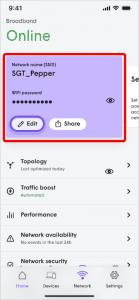
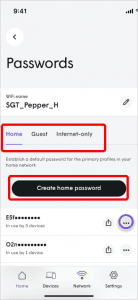
- Open the Network page.
- Tap on the “Passwords” tile to get to the passwords screen.
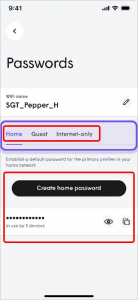
- The Password screen will display a list of passwords created for that Network name (SSID).
○ If it is a WPA2 SSID, use the Home, Guests, or Internet Only tabs to switch between the different types of passwords you have created.
- Tap on the “Share” icon on the password you want to share.
○ A QR code that can be scanned by another device with a built-in camera to join the network without entering a password is displayed.
○ The Share a link option on the QR code page offers other sharing methods based on the apps installed on the device. This method allows you to send a link to a web page with the Network name and password. The link generated will automatically expire after 24 hours.
Q: How do I change or disable wireless passwords?
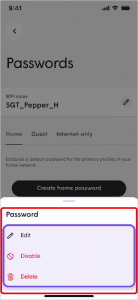
- Open the Network page and tap the “Passwords” tile.
- Choose the Home, Guest, or Internet-only tabs to bring up the appropriate list of passwords and select the password to be modified.
- Tap the “options” button next to the password you want to modify.
- In the pop-up menu, choose an option to modify the password.
○ Edit – Change the password, modify shared devices on guest passwords, or modify an expiry.
○ Disable – This option disables the password until you manually reenable it. (Only available for WPA2 passwords)
○ Delete – Completely remove the password for the Plume Home Wi-Fi network. (Only available for WPA2 passwords)
○ Enable – Reenables a previously disabled password.
5. If “Edit” is chosen, make the changes and tap on Save.
6. If “Disable” or “Delete” is chosen, tap on “Confirm”.
Any devices previously using the password before it was changed, disabled, or deleted, will be disconnected from the network.
Q: How do I create additional passwords?
Multiple passwords are automatically enabled if your network does not have 6GHz-capable hardware.
However, if you have 6GHz-capable hardware, your Plume Home Wi-Fi network may only have a WPA3 SSID and you’ll have to enable a WPA2 SSID as a secondary Wi-Fi network.
- Open the Settings page and tap on the “Network” tile.
- Tap on “Wi-Fi security” and turn the WPA2 toggle on.
- Tap on “View passwords” to create additional passwords for the WPA2 Wi-Fi network.