

Plume Home App™ Features
With the Plume Home app you can control your wireless devices, whether you’re at home or on the go!
Q: How do I create user profiles?
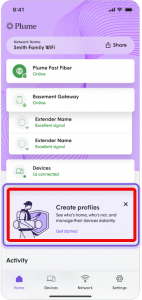
- Tap on Get Started in the Create Profiles section
- Name the group or profile
- Enable or Disable the desired settings:
- Content filtering
- Ad Blocking
- Online Defense
- Advanced IoT protection
- Tap Next
- Select the devices to add to that profile
- Tap Add Person
- Confirm that the profile is listed
Q: How do I view/manage devices on my network?
There are two methods to get to the Devices page:
- Tap on the Online devices button on the Home page.
- Open the Devices page using the navigation tabs.
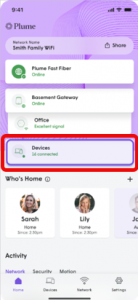
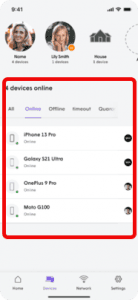
The Devices page lists all devices currently or previously connected to your network. Select a device to view connection details and adjust its settings.
Q: How do I enable parental controls?
This feature allows you to set content access rights for each profile or at the device level. You can also block or approve websites. Known in Plume Home App as a Focus, this can be used for anyone who needs time away from electronic devices.
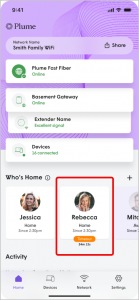
- A Focus can be created for an individual device or for an entire profile.
- To create a new Focus for a single device:
- Select the Devices page
- Select the device to be Focused
- If the device is unassigned, it must be added to a profile by selecting “Assign to a Profile”
- If the device is assigned to an existing profile, select “+” in the Create a Focus field
- Start by naming your Focus and select the devices or profiles that will be included, then tap the “Next” button.
- Select “All” or “Custom”
- “All” disables internet access from the device(s) entirely.
- “Custom” allows specific app categories (e.g., social networking) or individual applications (e.g., Facebook) to be paused.
- If proceeding with a custom Focus, select the desired categories or individual apps, then press “Next” to proceed.
- You must now schedule your Focus to be one-time, recurring, or indefinite.
- For one-time or recurring Focuses, select the start and end dates and the applicable days of the week.
- An indefinite Focus will remain active until you deactivate it.
- Tap “Create” and the Focus will be activated based on these settings.
Q: How do I modify or enable security settings for the network?
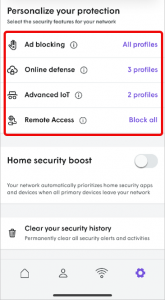 Advanced security allows real-time protection against cyberthreats. Plus, you can control which security features are enabled.
- Online Defense – activates a real-time protection against ransomware, malware, and more
- Advanced IoT Protection – protects your network and connected devices against hackers and cyber criminals
- Ad Blocking– blocks loading of web and video ads
- Content Filtering – allows you to restrict the type of internet content accessible while connected to Plume Home
- Remote Access – proactively blocks incoming connections
To access the settings, open the Settings page and select the “Security” tile.
Q: How do I enable Traffic boost?
Give an extra boost to devices when they need them.
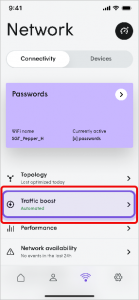
Traffic Boost
- Tap the “Traffic Boost” icon under the Network page.
- Tap the “Apps” header tile to boost specific categories or individual apps or select Profiles to boost specific profiles and their assigned devices.
- Select a time limit of 3 hours, 6 hours, or until the end of the day.
Q: How do I enable Home Security boost?
Give an extra boost to devices when they need them.
 Home Security Boost
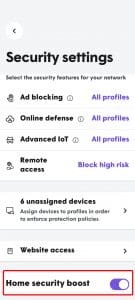 Home Security Boost
1. From the Settings page, tap the “Security” tile.
2. Enable the toggle for Home Security Boost, which will activate once all primary assigned devices have left the home.