

Connected Home powered by 

HTC Connected Home members are able to utilize Alarm.com (ADC) as a tool to operate, manage and monitor their home security systems whenever they’d like, and wherever they are!
Get started today by following the prompts from the HTC Connected Home Welcome E-mail sent to the address on file after signing up for service!
Q: How do I arm/disarm system through Alarm.com?
The steps for arming and disarming the system are the same on both the Alarm.com website and mobile app.
From the main Home screen, select the shield icon above “Panel,” then choose the desired Arming option or Disarm.
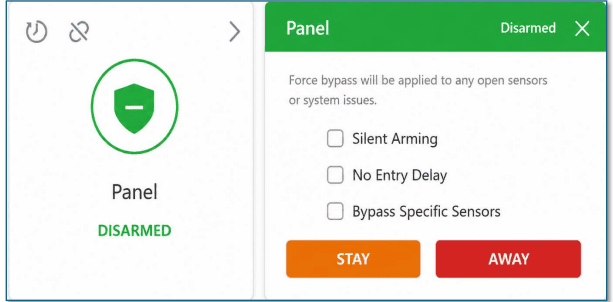
- Arming Stay – Intended to be used while you’re home. This setting will arm all doors and windows but will NOT arm any motion detectors.
- Arming Away – Arms the entire system, including motion detectors.
- Silent Arming – Arms the system without it producing any tones, like an exit delay timer, as to not interrupt others at the location.
- No Entry Delay – Sounds the alarm instantly if any zone is triggered, bypassing the normal delay period.
- Bypass Specific Zones – Arms the system while temporarily ignoring selected zones. This lets you leave certain doors or windows open while keeping the rest of your property protected.
Q: How do I view History?
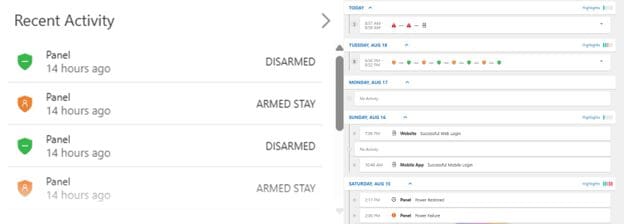
Web Version: From the Home screen, select Recent Activity to view more detailed information about recent events.
App Version: Select the Activity icon at the bottom of the screen to access version information.
Q: How do I manage user codes?
Alarm.com users can view, create, and delete User Codes. The Master Code is reserved for the account owner and provides full control of the system.
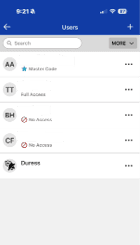
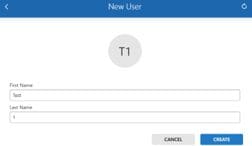
Web Version: To create a new user, select + User from the Users menu, enter the user’s name, and then click Create.
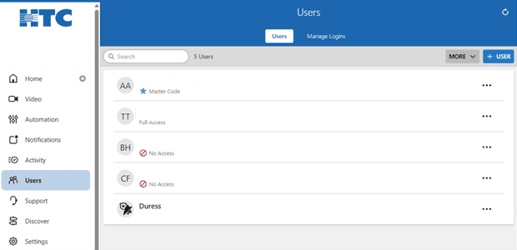
App Version: To add a user, tap More at the bottom of the screen, then select Users from the Account menu. Tap the + icon in the upper-right corner, enter the user’s name when prompted, and select Create.
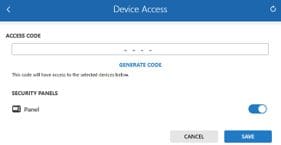
For both the web and app versions, enter a 4-digit code in the Code field for the new user.
Alternatively, you can select Generate Code to create a random code automatically.
Make sure Panel Access is enabled and assign access to any other required components, such as door locks. When finished, select Save.
To limit access for a newly created user code, select the Time option on the next screen. This allows you to control when the code can be used.
A Restricted Schedule limits access to specific days and times. For example, you can allow the code to work only on Mondays, Thursdays, and Fridays, or restrict access to certain hours, such as before 5:00 PM.
A Temporary Access schedule, on the other hand, allows the code to be used only within a defined date range. For example, you can grant access from May 1 through May 5, after which the code will no longer be valid.
Q: How do I manage logins?
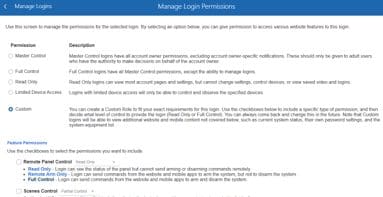
To create an additional Alarm.com login, select Manage Logins at the top of the Users page.
Note: This option is available only through the Alarm.com web portal.

After creating the login, you can either apply a preconfigured permission template or create a custom set of permissions by manually selecting the access level for each Alarm.com feature.
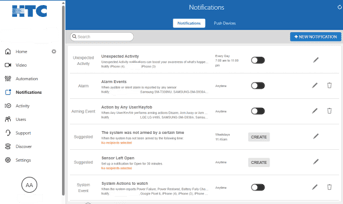
Q: How do I customize notifications?
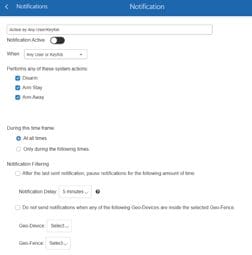
You can customize your notification preferences by choosing which Alarm.com notifications to enable or disable.
Notifications can be delivered by push notification, email, or SMS, with push notifications recommended for the fastest and most reliable delivery.
Each notification can also be tailored with specific conditions and settings, allowing you to receive alerts that match your needs and preferences.
Web Version:
App Version:
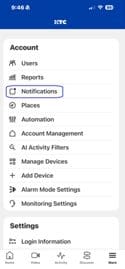
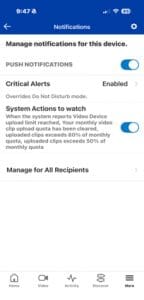
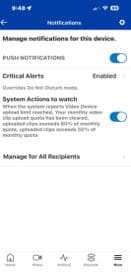

Once you’ve opened the notification menu, click the gear icon to access its settings.
You can then select an existing rule to modify or create a new rule and customize it to meet your needs, as shown below.
Q: How do I view video analytics?
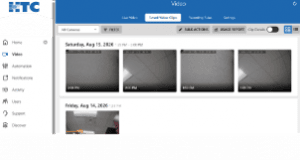
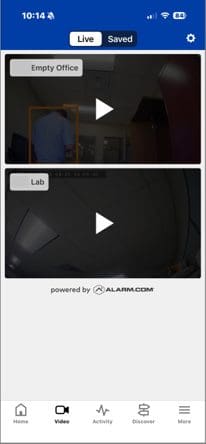
Users with connected video devices can view live camera feeds directly through Alarm.com.
Website:

Application:
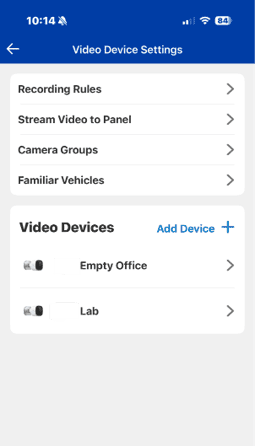
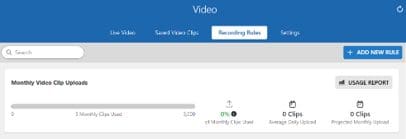
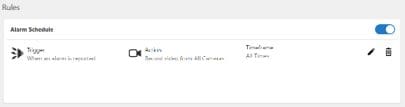
Video Analytics rules can be created, edited, paused or deleted to control when video clips are recorded and how notifications are delivered.
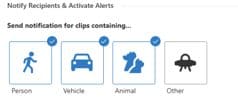
When Video Analytics cannot classify an object as a person, vehicle, animal, or package, it is automatically categorized as Other.
When reviewing recorded clips, note that events labeled Other are hidden by default and must be manually included in the filter settings to appear in search results.
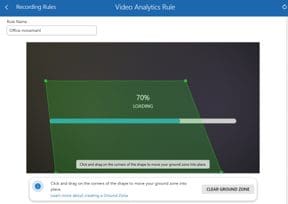
With Alarm.com Video Analytics, you can create Trip Wire and Ground Zone rules to monitor specific areas.
Alerts and recordings can be triggered when a person, vehicle, animal, or other object crosses a Trip Wire or lingers within a designated Ground Zone.
Users can also configure Video Analytics rules to record clips only during specific times of day or when the system is in certain armed states.
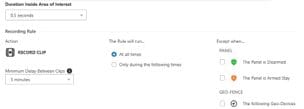
Careful management of these settings is recommended to ensure clip recordings are captured when needed without unnecessarily increasing usage.
Keep in mind that each service plan includes a limit on the number of clips that can be uploaded.
Configuring rules too broadly may cause recordings to accumulate quickly and could result in reaching the plan’s upload limit.
If the monthly clip upload limit is reached, Video Analytics rules will be paused until they are manually re-enabled after the monthly quota resets or the service plan is upgraded.
Notification preferences can also be customized on a per-rule basis, allowing users to choose how and when they receive alerts for specific Video Analytics events.