
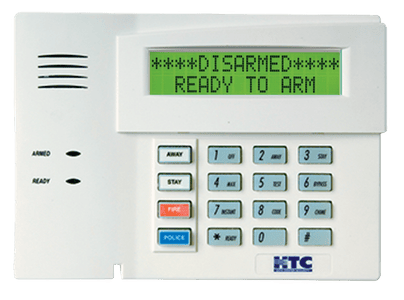
Honeywell Vista Panel
Q: How do I arm the system?
- AWAY mode: Enter your 4-digit code & press AWAY (2)
- STAY mode: Enter your 4-digit code then press STAY (3)
If the doors are not opened after entering your code to arm the system, it will assume you are still inside and will automatically arm in STAY mode.
- STAY mode arms all door and window sensors without entry delays and bypasses motion detectors.
- AWAY mode arms all sensors, and entry/exit doors will have an entry delay when triggered.
Q: How do I disarm or silence the alarm?
Enter your 4-digit code then OFF (1)
Q: How do I clear defaults or memory?
- Enter your 4-digit code then OFF (1)
- Repeat your 4-digit code then OFF (1)
Q: How do I check the system status?
- Press *
- Panel troubles should show on LED display
Q: How do I set the chime feature?
- Enter your 4-digit code
- Press CHIME (9)
Q: How do I set/reset time and date?
- Enter your 4-digit code
- Press # 6 3 *
- Enter 2-digit hour and 2-digit minutes
- Press 1 for PM OR 2 for AM
- Enter last 2 digits of current year followed by 2-digit month and 2-digit day
- Press * to exit
Q: How do I bypass zones?
- Enter your 4-digit code
- Press BYPASS(6)
- Enter 2-digit zone number
Bypassed zones will reset once the system is disarmed. Zones must be bypassed before arming the system, and fire zones cannot be bypassed.
Q: How do I change the primary/master passcodes?
- Enter your current 4-digit master code
- Press 8 0 2
- Enter your new 4-digit code twice
- The system should beep 3 times to indicate the change
Verify that the old code no longer works, then test the new code to confirm it is functioning properly.
Q: How do I program or delete a secondary code?
To Program:
- Enter your 4-digit master code
- Enter the secondary code ID ranging from 803-864
- Enter the new 4-digit code
- The system should beep once to indicate the change
To Delete:
- Enter your 4-digit master code
- Enter the secondary code ID ranging from 803-864
- Press # then press 0
- After 3 secs the keypad should beep once indicating the code has been deleted
Q: How do I manage the Vista system battery?
The Vista system contains a separate keypad and panel.
In a hardwired security system, the keypad is connected directly to your home’s electrical wiring and communicates with the main control panel.
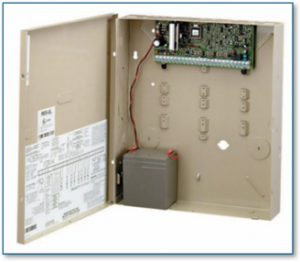
Replacing the Battery:
Locating the Control Panel
The main control panel is typically a large beige enclosure mounted in a utility area of the home, such as a closet, garage, laundry room, or near the home’s electrical equipment. The panel is powered by an AC power adapter and contains the system’s backup battery.
Accessing the Battery
- Locate the main control panel.
- Use the panel key to unlock and open the enclosure door.
- In many installations, the key is left in the lock or placed on top of the panel.
- Open the panel to access the internal components.
Replacing the Battery
- Locate the backup battery inside the panel.
- The battery is typically a 12V 5AH sealed lead-acid battery (HL 130620 or equivalent).
- Disconnect the battery leads:
- Remove the red wire from the positive (+) terminal.
- Remove the black wire from the negative (-) terminal.
- Remove the old battery from the panel.
- Install the replacement battery in the same position.
- Reconnect the battery leads:
- Connect the red wire to the positive (+) terminal.
- Connect the black wire to the negative (-) terminal.
- Verify all connections are secure.
After Battery Replacement
- Close and lock the panel door.
- The battery will automatically begin charging while AC power is present.
- Any low battery trouble condition may take several hours to clear after installation.
Battery Life and Backup Power
Under normal conditions, the backup battery can power the security system for approximately 24 hours during a power outage. Once utility power is restored, the battery will recharge automatically.
Most sealed lead-acid batteries have an expected service life of approximately five years, although lifespan may vary based on usage, environmental conditions, and the frequency of power outages.