
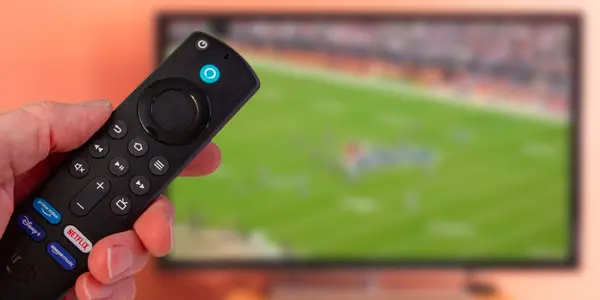
Amazon Firesticks
Watch HTC TV Max with an Amazon Fire Stick. Learn more about the features and benefits.
Q: What is HTC's Firestick Warranty?
HTC –provided Firesticks will have a 14-day warranty. If a Firestick is deemed defective within the 14-day window, they can be exchanged at a branch office.
Please contact HTC Technical Support at 843-365-2186 for ‘best-effort’ troubleshooting of any Firestick trouble that may arise.
If the trouble is unable to be resolved through tech support, and outside the 14-day window, technical support may refer you to Amazon Support at 888-280-4331.
Q: What Firesticks are incompatible with HTC TV Max?
Please Note: Amazon’s newest FireTV Sticks, Firestick 4k SELECT and Firestick HD, are working on a brand-new operating system called Vega OS.
As of today, HTC TV Max is not yet compatible with nor available on the new OS.
Here is what we know:
- Current Fire TV devices will not be impacted as their OS is Android based
- The only Fire TV devices that are NOT compatible with HTC TV MAX is the new Fire TV Stick 4K SELECT and Fire TV Stick HD
- Our developers are looking into ensuring that code is written to ensure that our app will be compatible with this operating system
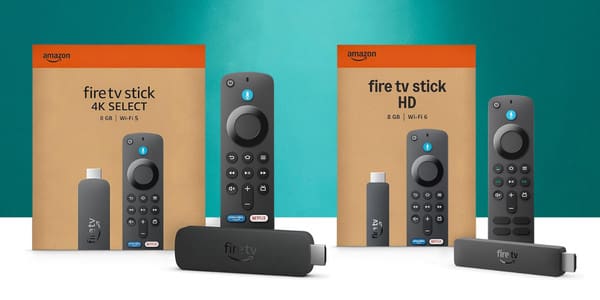
If you have purchased an incompatible Firestick, please reach out to tech support at 843-365-2186, for further assistance.
Q: How do I determine the user interface for my Firestick?
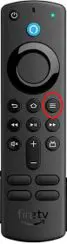
To select the correct set of instructions for a Firestick, use the information below to determine the User Interface the Firestick is working with.
Step 1: Press the Menu button on the Firestick remote control.
Step 2: At the very top of the screen, do you see “Home, Live, Find, and Library?”
-
-
- If yes, the Firestick is using the new User Interface (UI)
- If no, the Firestick is using the classic User Interface (UI)
-
Q: How do I move the TV Max icon on the Home Screen?
To make HTC TV MAX easy to find on your Fire TV Stick, complete the following:
Q: I'm having issues with HTC TV Max. How do clear data or cache?
When experiencing trouble with HTC TV MAX on a FireTV Stick, the following tools may assist in getting the trouble resolved:
- Force Stop – Closes the application and stops it from running in the background
- Clear Cache – Clears the background data stored by the app
- Clear Data – Clears all data from the app, requiring the user to sign back in upon re-launching (Last resort)
To find these options on your streaming device, complete the following steps:
Options will then be present
Q: How do I reboot the Firestick?
Physical Reboot
- Remove the power cord from the Fire TV Stick itself or from the electrical outlet
- Wait approximately 10 seconds and reconnect the power cord
- The Fire TV Stick should now be powering back up
Note: Removing the Fire TV Stick solely from the TV itself, does not reboot the streaming device
Reboot via Remote
- Press and hold the “Select” and “Play/Pause” button simultaneously
- After approximately 10 seconds, a dialog box should pop up indicating the Firestick is powering off
- The Fire TV Stick should automatically begin to boot back up
Reboot via Settings
Q: I'm having issues with my remote. How do I troubleshoot?
Pairing the Remote to the TV
These steps can be taken if the Firestick remote is not powering the TV on/off or controlling the volume through the TV.
Repairing the Remote to the Fire TV Stick
- In the case of the Firestick remote no longer operating the Firestick, complete the following steps:
- Unplug the Firestick from its power source
- Remove the batteries from the Firestick remote and reinsert them (or swap them with a fresh set)
- Reconnect power to the Firestick
- Hold the “Home” button for 10 seconds
If the remote is still not operating the Firestick complete the following additional steps:
- Press and hold the left of the directional pad, back button, and menu button
- Release the buttons after holding them for 15 seconds or the activity LED on the remote begins to flash
- Hold the “Home” button for 10 seconds