

EVO Force 1
Do you prefer the traditional CATV experience rather than streaming? The HTC EVO Force1 Box is perfect for you. Combine all the features of a traditional remote with the updated technology that HTC TV MAX offers for the best of both worlds!
Q: What is the EVO Force 1?
- Plug-and-Play Cable Device: Approximately 15 minutes installation from unboxing to watching.
- Provides a traditional cable experience for our members converting to HTC TV Max
- Provisioned to allow for simplified installation and login experience
- Have the true ‘turn on and watch’ experience, just like you are accustomed to
- Traditional numbered keypad
- Access your DVR recordings in any room
- Access Netflix with a single click or launch apps to watch other streaming platforms.
- PLUS, all the features and benefits of HTC TV MAX, including restart, replay 72-hour lookback and more!
Q: How do I setup the Force 1?
- Connect the Force 1’s power source into an electrical outlet.
- Connect the Force 1 to the TV via HDMI and tune to the appropriate Input.
- Insert two AAA batteries into the remote.
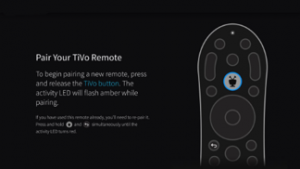
- Follow the prompts to pair the F1 remote to the F1 box.

- Select the desired language preference.
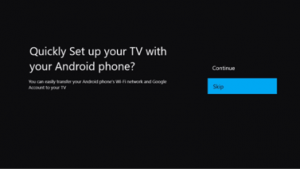
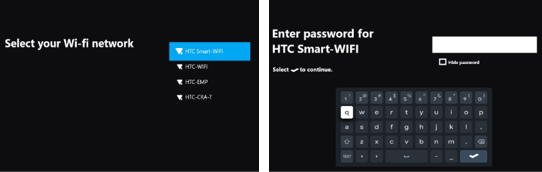
- Skip the “Quick Set Up” with a phone. On the next screen, you will select the wireless network and enter the password.
- Connect to the appropriate Wi-Fi network.
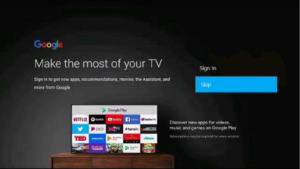
Note: Numerical passwords can be entered by selecting the numerals on the remote itself, rendering the keyboard unneeded. - The next screen will present the option of signing into a Google account, while this is needed for downloading 3rd party applications, it can be skipped during the initial installation.
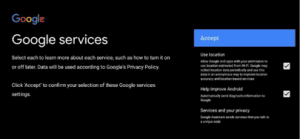
- Accept Google’s Terms of Service.
- Accept or deny various Google permissions.
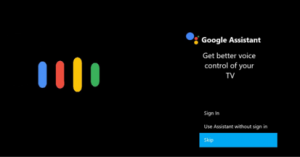
- Setting up the Google Assistant can also be skipped during the initial installation and enabled later if desired.
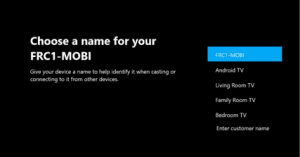
- Select or enter a name for the Force 1 device.
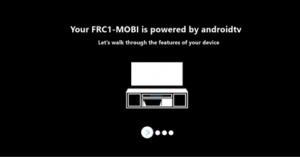
- Scroll through the highlighted features of Android TV.
- Proceed through the guided prompts of pairing the Force 1 remote to the TV for volume and power control.
- The setup is complete and TV MAX should automatically launch and log the user in. Terms of service will have to be accepted.



Q: When and how do I clear the cache?
Your EVO Force 1 will occasionally need to be cleared of cache in order to operate smoothly. Many of the common symptoms include:
- Application is freezing
- Channels are loading slowly
- Buffering
- Missing features such as guide data or menu options
Clearing cache is simple and, if done regularly, will keep your video experience free from the issues mentioned. The steps to follow are:
Step 1: Press the silver TiVo button on your Force 1 remote to open the Menu Bar.
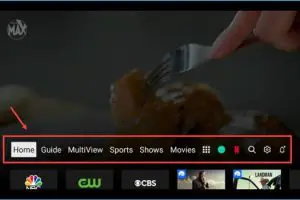
Step 2: Navigate to the far right of the Menu Bar and select the Gear Icon to open Settings.
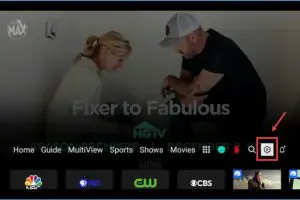
Step 3: In Settings, scroll down and select Device Settings.
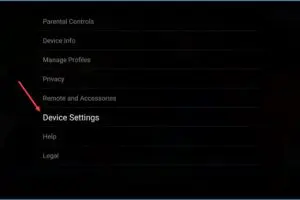
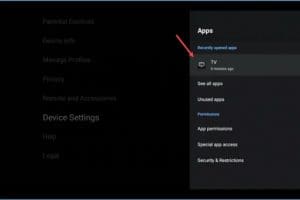
Step 4: Under Device Settings, scroll down and click on Apps
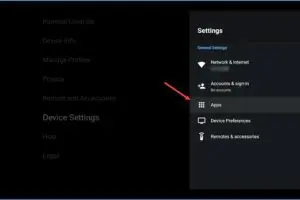
Step 5: The HTC TV Max app appears first by default and is labeled as “TV.” Select “TV” to continue. Note: Here you can also select “See all apps” to view all installed applications.
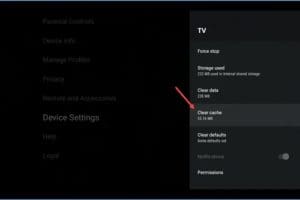
Step 6: Inside the TV app menu, select Clear Cache, then confirm by selecting OK.
Q: When and how do I reboot the EVO Force 1?
If you’re experiencing any of the following, a reboot of the device may be needed:
- Buffering/Network Errors
- Freezing/Playback Errors
- Content not loading correctly
You have the option to do a physical reboot or reboot from the Force 1 menu.
PHYSICAL REBOOT: To complete a physical reboot of the Force 1, unplug the power cord from the back of the box or the electrical outlet. Wait about 10 seconds, then reconnect the cord. The Force 1 should power back on automatically.
MENU REBOOT: To reboot the Force 1 from the menu, follow these steps:
Step 1: Press the silver TiVo button on your Force 1 remote to open the Menu Bar.
Step 2: Navigate to the far right of the Menu Bar and select the Gear Icon to open Settings.
Step 3: In Settings, scroll down and select Device Settings.
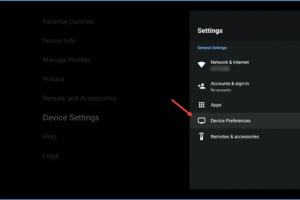
Step 4: Scroll down and select Device Preferences.
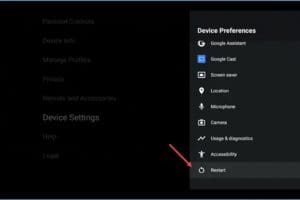
Step 5: In Device Preferences, scroll all the way down to Restart, and follow the prompts to restart your Force 1 device. The device will power off and then automatically return to your show once it restarts.
Q: How do I reconnect to the Wi-Fi?
Step 1: Press the silver TiVo button on your Force 1 remote to open the Menu Bar.
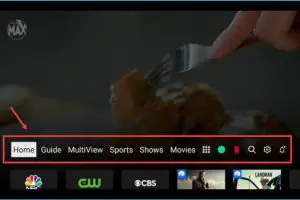
Step 2: Navigate to the far right of the Menu Bar and select the Gear Icon to open Settings.

Step 3: In Settings, scroll down and select Device Settings.
Step 4: In Device Settings, select Network and Internet.
Step 5: Verify that Wi-Fi is enabled by making sure the toggle is blue and switched to the right.
Step 6: Select your Network Name (SSID) under Available Networks.
Step 7: If the network is saved, you may select “Connect” if not enter in your Wi-Fi password and select the “  “icon.
Q: What are the features of the Force remote control?
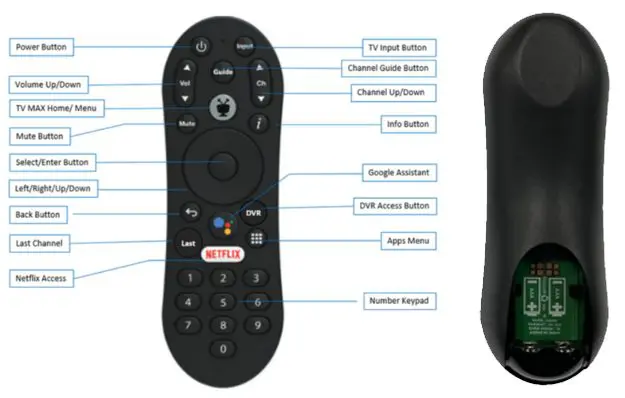
Remote requires two AAA batteries
Q: How do I connect my remote to the Force 1?
Pairing the Remote to the TV
|
Option 1:
|
Option 2:
|
Re-pairing the Remote
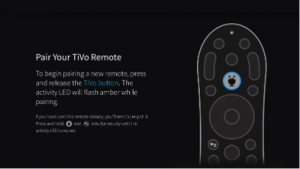
Press and hold the TiVo and Back buttons at the same time, until the Activity Light flashes quickly, then release.
This means the remote has entered pairing mode.
Wait a few seconds without pressing any buttons until you see the pop-up message of pairing success.
If after a few moments, and a pop up is not seen, try pressing and releasing the TiVo button.
Resetting the remote
Only factory reset your remote if you are unable to repair the remote to the EVO Force1 box. A factory reset will unpair the remote with the box and any other accessories it is set up for; TV, soundbar, etc.
- Press and hold the TiVo button and the TV power button at the same time for approximately 3 seconds. Release the buttons.
- The activity light will be solid red.
- Press Volume down 3 times and then press the TiVo button.
- The activity light will flash red 3 times.
Follow the re-pairing procedure above.
Q: How do I replace my remote?
- Faulty remotes can be exchanged at any HTC Branch Office at no charge.
- Additional remotes can be purchased at any office for $15.
- The remote can be shipped for an additional $10 shipping fee .
NOTE: It is not recommended to attempt to use two Force 1 remotes for a single Force 1,box. Each time a second remote is programmed, the original remote will lose programming function.