
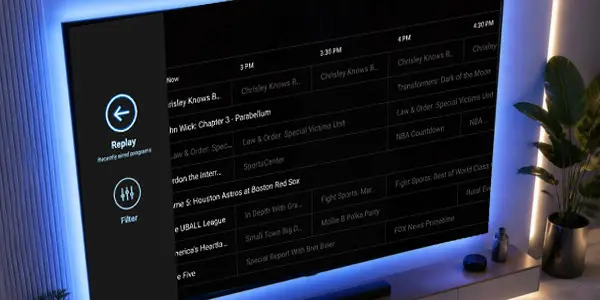
TV MAX Features
Please note: Not all streaming devices will include all of HTC TV MAX’s features. For the most compatible devices and best user experience use the Amazon Fire TV Stick 4K Max or EVO Force 1.
Q: What is the Main Menu?
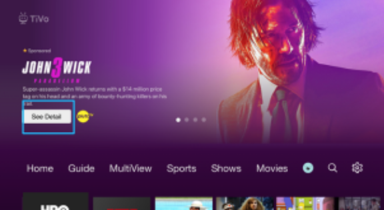
The Menu serves as the main navigation hub for the application and provides access to all available features and content.
Q: What can I find on the Home Screen?
The Home screen is the default landing page of the TV Max application and serves as the central location for content discovery and navigation.
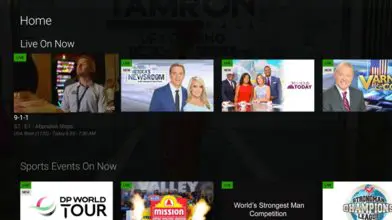
The Home screen is designed to help users quickly find entertainment without having to browse through multiple menus or channels. Here you’ll find quick access to Recommended Movie Content, Live TV, DVR Content, Recently Watched with option to resume, and more.
Q: How do I use the Program Guide?
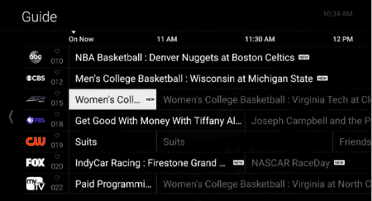
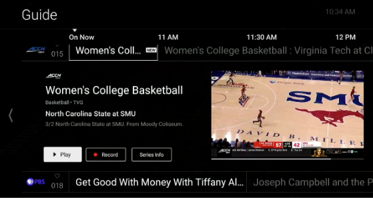
The Program Guide displays scheduled programming and channel information.
Key Features:
- Browse available channels.
- View upcoming programming.
- Access Recording options.
- Launch Start Over and Lookback features when available.
Q: How do I re-start a program?
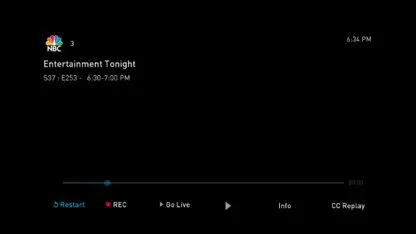
The Start Over feature allows users to restart a currently airing program from the beginning, even if they join after the show has started.
When a user begins to view a live program (with rights to restart) that is in progress, there are three different ways in which a user can start from the beginning:
- Selecting the restart option from the dialog that appears for a few seconds after the media player is launched.

- Selecting the restart option from the player controls.
- Rewinding backwards to the beginning of the program.

Key Features:
- Restart live programming.
- Begin viewing from the opening scene.
- Available on supported channels and programs.
Q: I missed a program. Can I still watch it?
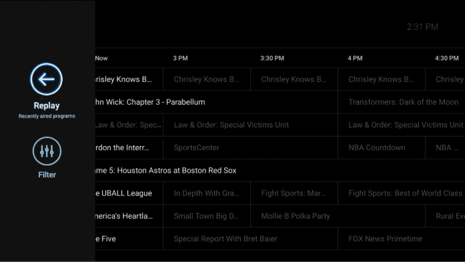
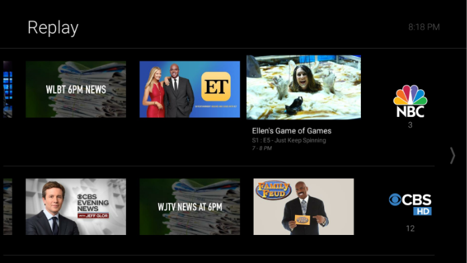
Lookback (Replay) allows users to access previously aired programming without having recorded it in advance.
For applicable channels, scrolling left in the guide will allow the user to view previously aired programs for up to 72 hours in the past.
Key Features:
- Watch programs that aired earlier.
- Access recent content from participating channels.
- Browse previously broadcast programming directly from the guide.
Q: How do I launch the MultiView option?
MultiView enables users to watch multiple channels or events simultaneously on a single screen.
Key Features:
- View multiple streams at the same time.
- Switch audio between available channels.
- Monitor multiple live events simultaneously.
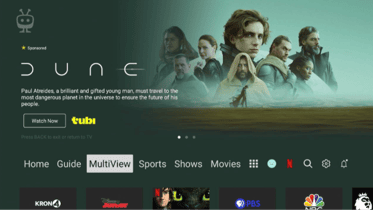
To use: Select the “MultiView” menu item from main navigation to access the feature.
On first entry to the MultiView screen, a tutorial overlay is displayed.
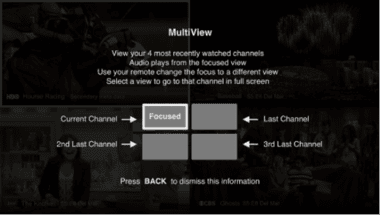

The MultiView screen displays the four most recently watched live channels in a grid layout. Each channel is shown in a quadrant (tile) labeled as follows:
- Top-Left: Either the currently playing channel or the most recently watched one.
- Top-Right: The second most recently watched channel.
- Bottom-Left: The third most recently watched channel.
- Bottom-Right: The fourth (oldest) recently watched channel.
The audio will be determined by which pane is highlighted. For a channel to be viewed in MultiView, the user must have tuned to the channel for a minimum of 12 seconds, and the channel selection is based on the most recently viewed channels account wide; it is not device specific.
Q: How do I create a list of my favorite channels?
The Favorites feature allows users to create a personalized list of preferred channels and content.
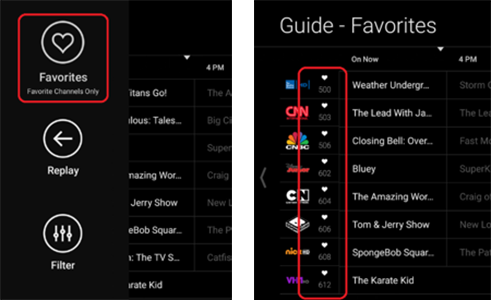
Within the guide, a member can select their favorite channels by selecting the “heart” icon included in the column with the channel name, number, and logo.
Members can then scroll left in the guide to find the “Favorites” filter and toggle between seeing all their subscribed channels or only the selected favorites.
Key Features:
- Save favorite channels.
- Customize channel lists.
- Filter the guide to show favorites only.
- Quickly access preferred content.
Q: How do I watch Video on Demand? (VOD)
The On-Demand section provides access to content that can be viewed at any time. Within TV MAX there are options to view lists of Shows, Movies, etc., as well as a search.
Key Features:
- Movies
- Television shows
- Special programming
- Recently added content
Q: How do I use the DVR feature?
The DVR feature allows users to record live television content, for applicable channels and watch it later at their convenience.
Key Features:
- Record individual programs.
- Schedule future recordings.
- Record an entire series automatically.
- Manage recorded content.
- Delete recordings to free up storage.
Benefits:
- Never miss favorite shows or events.
- Watch content on your own schedule.
- Pause, rewind, and replay recorded content.
Q: How do I set up Closed Captioning?
Want subtitles for your video? Use the closed captioning feature.
- Apple TV: Swipe down in the touch surface area of the remote while watching live TV. This brings up the media player controls on an overlay at the top of the screen. Navigate to the CC option in the overlay screen. Click it to toggle it on or off.
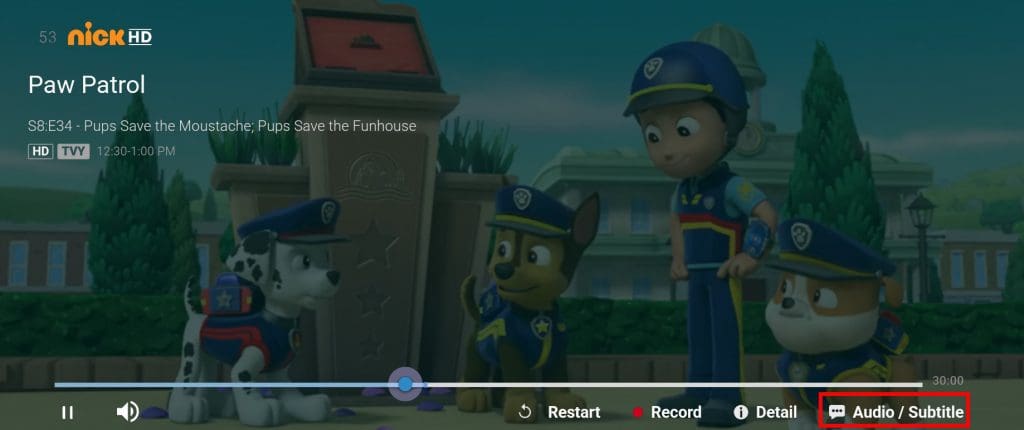
- Android TV: Click the Select button while watching live TV. This brings up the media player controls on an overlay screen at the bottom. Navigate to the Audio/Subtitle on the Main Menu and press the Select button to toggle it on or off.
- Amazon Fire TV devices: Click the Select button while watching live TV. This brings up the media player controls on an overlay screen at the bottom. Navigate to the Audio/Subtitle on the Main Menu and press the Select button to toggle it on or off.