

HTC My Account AutoPay
Save time and never miss a bill payment again when you switch to AutoPay. Add Paperless and you can save $5 off your HTC monthly bill.
Log into your HTC My Account to get started.
Q: How to Set Up AutoPay
Learn how to setup enroll in AutoPay for recurring monthly payments with these easy to follow instructions. It’s the fastest, easiest way to pay your bill. You’ll receive monthly email reminders on what you’re paying and when. Enjoy AutoPay and one less thing to worry about.
Step 1: Log in to My Account online or through the HTC My Account app. If you’re new to My Account you’ll need to create an account.
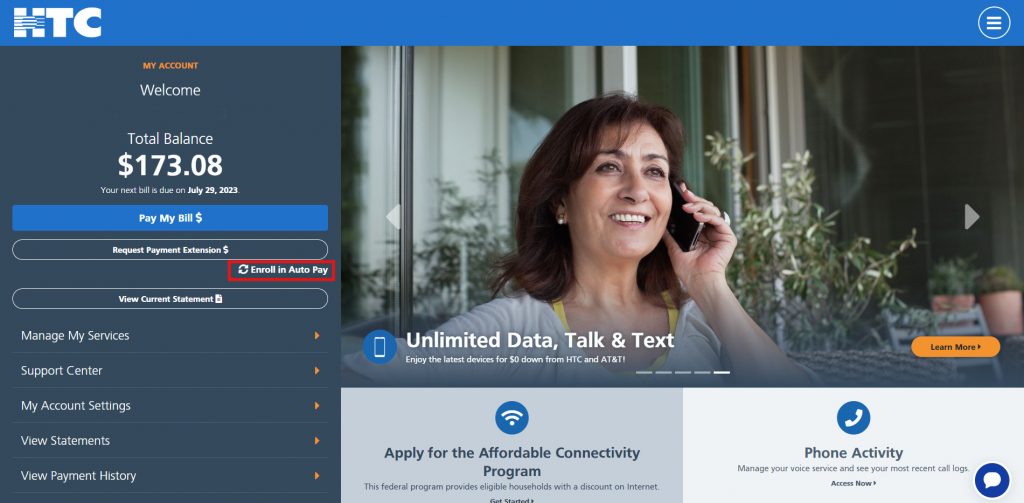
Step 2: Click on Enroll in Auto Pay.
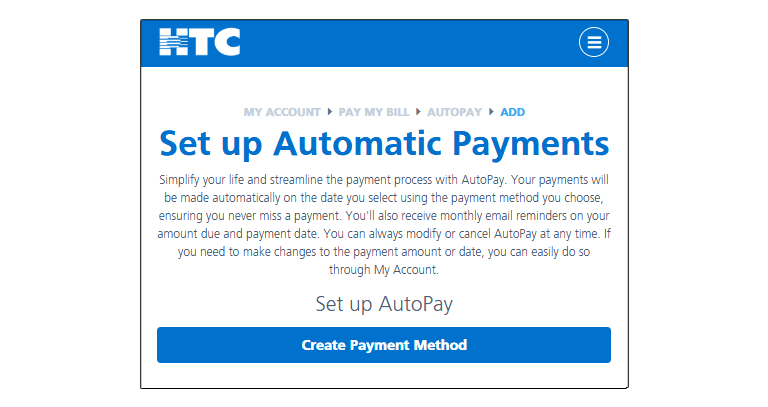
Step 3: You’ll first need to add a payment method if you don’t already have one saved in your My Account profile. Click on the Create Payment Method button to establish one. If you’ve already got one saved, skip to Step 5.
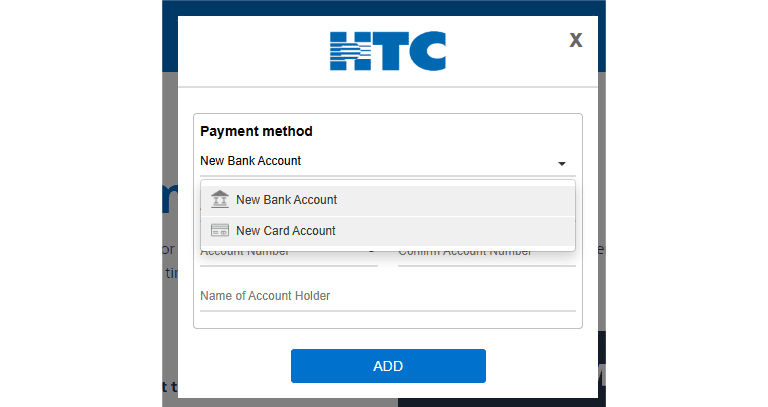
 Step 4: Select bank account or card account and enter your information. Once all information is filled, select ADD.
Step 5: Navigate back to the AutoPay page and click on the Setup AutoPay button.
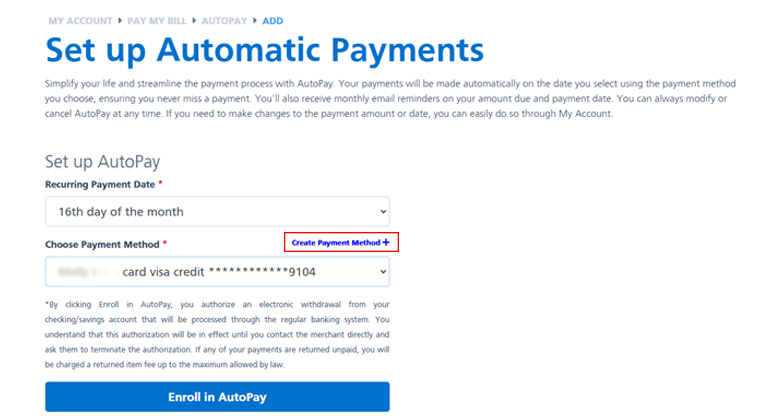
Step 6: Select a day of the month for your recurring payment and choose your payment method. If you haven’t added a payment method, you can click on the Create Payment Method and complete Step 4. Review your selections and click on the Enroll in AutoPay button.
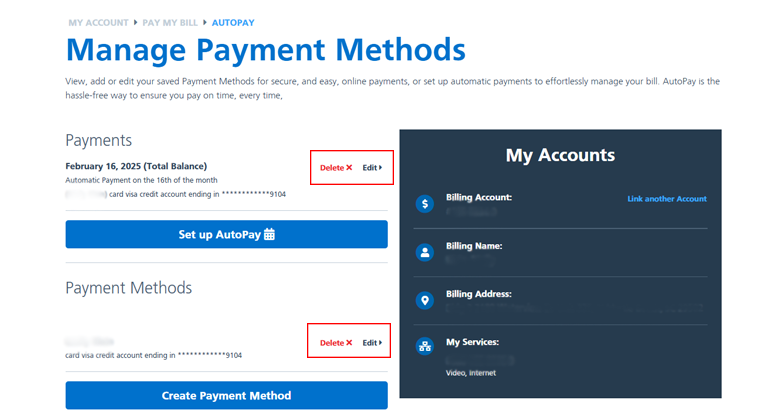
Step 7: Success! Your AutoPay is setup. The information you’ve added will now show up on the main page. If you need to make changes, you can edit and/or delete.
You will receive a confirmation email confirming your AutoPay enrollment.
Pro Tip: For more convenience, enroll in Paperless.
Q: How to Remove AutoPay
Moving? New bank account, or want to change the method of payment? Learn how to remove your information in AutoPay for recurring monthly payments with these easy to follow instructions.
Step 1: Log into My Account online or through the HTC My Account app. If you’re new to My Account you’ll first need to create an online account.
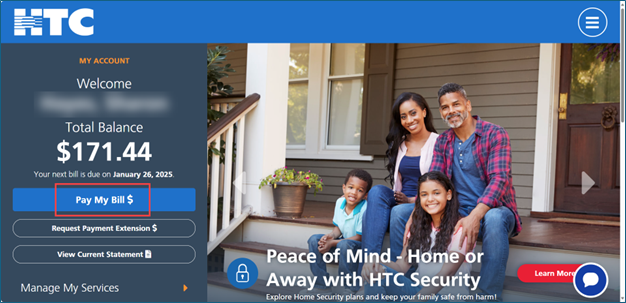
Step 2: Click the ‘Pay My Bill $’ button.
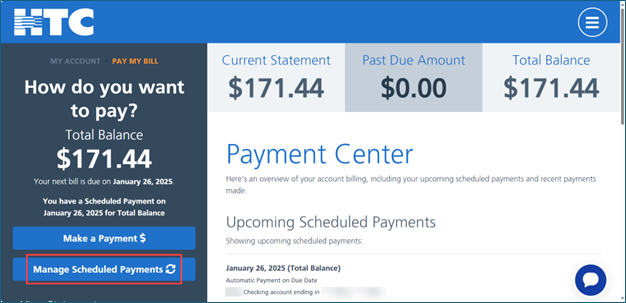
Step 3: Click the ‘Manage Scheduled Payments’ button.
Step 4: Click the red ‘Delete X’ option next to Payments and Payment Method to remove AutoPay.
Success! Your AutoPay has been removed.
You will receive a confirmation email confirming your unenrollment in AutoPay.
Frequently Asked Questions
Q: What is AutoPay?
AutoPay is a free, safe, automatic and recurring payment program that allows you to pay your bill automatically each month using a linked bank account or credit card to your HTC My Account profile.
Q: Who can enroll in AutoPay?
All members can take advantage of the convenience of AutoPay. Plus, members enrolled in Paperless with AutoPay may receive a monthly discount.
Q: How do you enroll in AutoPay?
Follow the instructions found here to setup your AutoPay.
Q: What payment methods can you use for AutoPay?
You can enroll using a savings account, checking account, credit card or debit card.
Q: When will your AutoPay process?
You’re in control of your payment date and can choose the day of the month that best meets your needs. Payments are withdrawn approximately two days before the bill due date.
Q: How long does it take AutoPay to start?
It can take up to two bill cycles for AutoPay to start. Pay as usual until you see AutoPay in one of these places:
- Paper bill: Look in the upper right corner of the first page.
- Online: Go to your HTC My Account profile and check the total balance section.
- Ebill: Look for the AutoPay section that will read on or off indicating your status.
Q: How do you change your AutoPay method of payment?
1. Sign in to My Account using your username and password.
2. Click on manage AutoPay.
3. Confirm your selections and click submit.
4. You will receive an email confirmation of your AutoPay changes.
Q: What happens if there is an unprocessed payment?
You’ll be notified by email if AutoPay is declined, or you have an unprocessed payment. If AutoPay fails, you must make other payment arrangements, and you may be unenrolled from AutoPay.
Q: Can you make a one-time payment even if your set up for AutoPay?
Yes, you can make a one-time payment any time even if your set up for AutoPay. If you make a one-time payment for the full amount of your balance your next AutoPay payment will be skipped.
If your one-time payment is less than the balance due, the remainder will be paid via AutoPay. Keep in mind, if you make a one-time payment near your AutoPay date and your automatic payment is already in process, it could result in a duplicate payment.
Q: How to cancel AutoPay?
Canceling your account doesn’t automatically cancel AutoPay. You must cancel AutoPay separately. Complete the following steps to cancel AutoPay from your account at any time.
1. Sign in to My Account using your Username and password.
2. Click on Manage AutoPay.
3. Confirm your selection and click submit.
4. You will receive an email confirmation of your AutoPay cancellation.
Q: Does HTC offer an AutoPay discount?
Yes, when certain requirements are met, HTC offers a monthly discount.
Q: What are the requirements for the discount?
To be eligible for the AutoPay and paperless discount each month, you must met the following requirements:
• Be on an eligible monthly internet plan.
• Be enrolled in both AutoPay and Paperless at the time of bill processing.
• Be current on your bill by paying the prior month’s bill by its due date. Any AutoPay discount will not apply if your account is or becomes past due.
• Bill must be greater than the discount to receive the full credit.
If any of these qualifying actions are altered, your credit will be revoked. HTC reserves the right to discontinue the discount at any time at its sole discretion.
Q: Which internet plans are eligible to get a discount for combining AutoPay and Paperless?
When you combine AutoPay and Paperless to your account, you can get a $5 per month credit for eligible internet plans. Speak with a Member Relations Associate for full details.
Q: How much can you save with AutoPay and Paperless discount?
The AutoPay and paperless discount is $5 per month per billing account when all requirements have been met.
Q: When will the discount be applied?
The discount will be reflected within two billing cycles of enrollment date.