
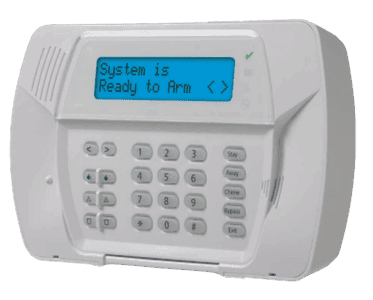
DSC Alexor/Impassa Panel
Q: What do I wake up my panel?
Press # to light up the panel. It idles with a blank screen to conserve batteries. If nothing happens, check the batteries on the back of the keypad.
Q: How do I arm my alarm system?
- AWAY mode:
- Method 1: Enter your 4-digit code
- Method 2: Press and hold AWAY button
AWAY mode Arms all sensors and the entry/exit doors will have an entry delay once triggered.
- STAY mode:
- Method 1: Enter your 4-digit code
- Method 2: Press and hold STAY button
If the doors are not opened after putting in your code to set alarm, the system will assume you are home and arm in STAY mode automatically.
STAY mode arms all door/window sensors with no entry delays but does not arm the motion detector(s).
Q: How do I disarm or silence an active alarm?
- Method 1: Enter your 4-digit code
- Method 2: Press the unlock button on key fob
Q: How do I check the status of my alarm system?
Press *2 or *2*. This will provide specific information about the condition of the panel.
Q: How do I enable/disable the chime feature?
- Method 1: Press and hold Chime button to turn on/off
- Method 2: Press * and then the right arrow key until “Door Chime” appears and press * to turn on/off
Q: How do I reset the time and date on my alarm panel?
- Press *6
- Enter your 4-digit code
- Enter 1
- Enter the date and time
- The Panel will beep to indicate change
- Press # # to exit
Q: How do I adjust my keypad volume?
- Press *6
- Scroll to “Buzzer Control”
- Press * on “Buzzer Control”
- Use the < and > keys to adjust the volume level
- 0 = lowest setting
- 20 = loudest setting
- Press # # to exit the menu
Q: How do I change/edit Passcodes?
You must know the current master passcode to change it. If you do not know the master passcode, click here for instructions.
Changing the Master Passcode
- Press *5
- Enter your current master code
- Enter 40 for the master code
- Enter new 4-digit code
- Panel will beep 3 times to indicate change
- Press ## to exit
Be sure to test the OLD code to make sure that it no longer works and then test the new code to confirm that it is working.
Programming Secondary Codes
- Press *5
- Enter your master code
- Scroll to select 1 of 16 possible secondary codes.
- Press * to select the one that is desired
- Enter new 4-digit code
- You will see a “P” show up next to the user code number you chose, indicating that one is in use
Deleting Secondary Codes
- Press *5
- Enter your master code
- Scroll to select which user code is to be deleted
- Press *
- Enter *0 to delete
- The “P” should no longer be beside that user code indicating the delete was successful
Q: How do I bypass a zone?
- Press *1
- Enter the two-digit zone number to be bypassed or use < > to scroll to desired zone
- Pressing in 00 here will release all zones bypassed
- Arming and Disarming the system will release all zones bypassed
- Press * – the letter “B” will display on the bottom right corner of the display
- Press # # to exit
Note: Bypass will be erased when the alarm is disarmed. Bypassing zones must be set prior to arming the system. Fire zones cannot be bypassed.
Q: How do I manage the Alexor system battery?
A DSC Alexor system has a separate keypad and panel.
How to find the system battery
The panel is a larger white box that will be mounted somewhere in the home with AC power and telephone access.
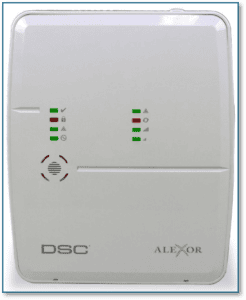
The main system battery is contained within the panel.
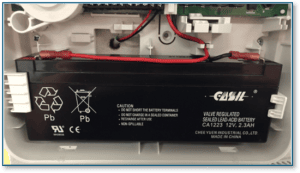
Removing the DSC Alexor cover and replacing the system battery:
Removing the Panel Cover
- Inspect the bottom edge of the panel for the cover release tab.
- Gently press the release tab while pulling the front cover outward.
- Once the cover disengages, lift it away from the base to access the internal components.
Replacing the Battery
- Locate the backup battery inside the panel.
- Note the orientation of the battery and the wire connections before disconnecting anything.
- Disconnect the battery leads:
- Remove the red wire from the positive (+) terminal.
- Remove the black wire from the negative (-) terminal.
- Remove the old battery from the compartment.
- Place the new battery into the battery compartment.
- Reconnect the battery leads:
- Connect the red wire to the positive (+) terminal.
- Connect the black wire to the negative (-) terminal.
- Verify that the connections are secure and that the wiring is not pinched.
Reinstalling the Cover
- Align the top portion of the cover with the mounting slots on the panel.
- Swing the cover downward toward the base.
- Press firmly until the cover snaps securely into place.
Q: How do I replace the Alexor keypad batteries?
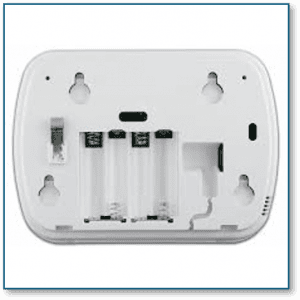
Removing the Keypad
- Locate the keypad mounted on the wall or tabletop stand.
- Push the keypad gently toward the wall (or stand).
- Slide the keypad upward to remove it from its housing.
- Once removed, access the battery compartment on the back of the keypad.
Replacing the Batteries
- Remove all four AA batteries from the keypad.
- Verify that all old batteries have been removed before installing any new batteries.
- Insert four new AA batteries, ensuring the polarity markings (+ and -) are followed correctly.
- It is recommended to use name-brand lithium batteries for optimal performance and longer battery life.
Reinstalling the Keypad
- Align the keypad with its mounting bracket or stand.
- Slide the keypad downward until it is securely seated in the housing.
- Confirm that the keypad powers on and operates normally.
Q: How do I manage the Impassa system battery?
The DSC Impassa features an integrated keypad and control panel, meaning the system battery is located inside the keypad itself. The backup battery is a specialized battery pack designed to keep the system operational during power outages.
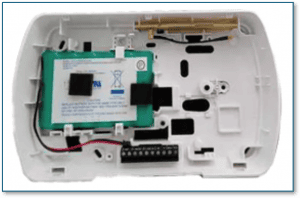
Removing the DSC Impassa cover and replacing the system battery:
Accessing the Battery Compartment
- Locate the two indentions on the bottom of the Impassa panel.
- Using gentle leverage, carefully pry the cover away from the panel.
- Remove the cover to expose the internal battery compartment.
Replacing the Battery
- Locate the battery pack inside the panel.
- Disconnect the battery from its connector.
- Remove the old battery pack.
- Install the replacement battery pack in the same position.
- Reconnect the battery securely to the system.
- Verify that the battery connection is firm and that no wires are pinched.
Reinstalling the Cover
- Align the cover with the panel.
- Press the cover firmly into place until it is fully secured.
What to Expect After Replacement
- The backup battery provides power to the system during an AC power outage, typically for up to 24 hours under normal conditions.
- Once commercial power is restored, the battery will automatically begin recharging.
- A low battery trouble condition may take several hours to clear after replacing the battery.