

SMART WI-FI
Self-Install Instructions
Follow the steps below to get started.
Step 1: Identify the components of your new HTC Smart Wi-Fi device:
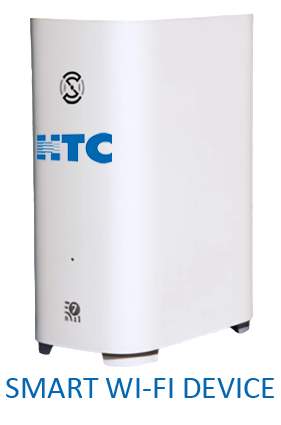
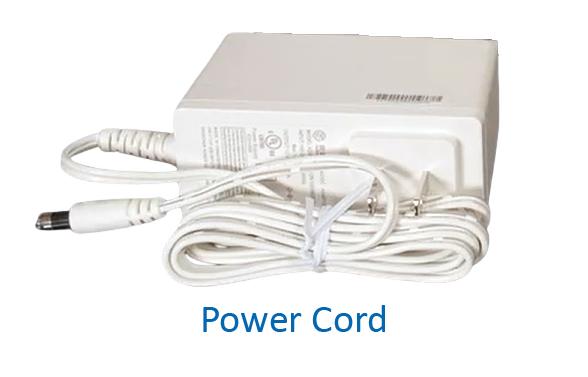
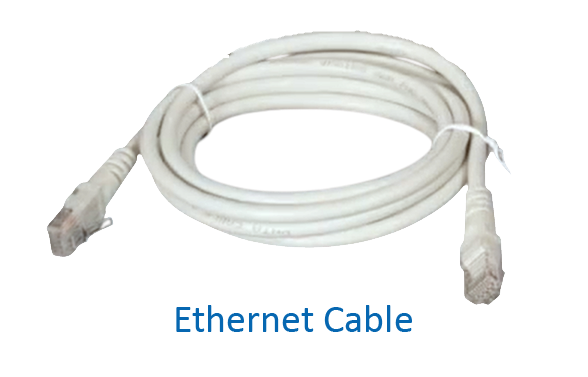
Step 2: Locate the HTC Smart Wi-Fi device you’re replacing, then unplug its power cord and ethernet cable. Some homes may have additional HTC Smart Wi-Fi devices.
Additional HTC Smart Wi-Fi devices may be connected wirelessly to the main modem/router and did not require an ethernet cable.
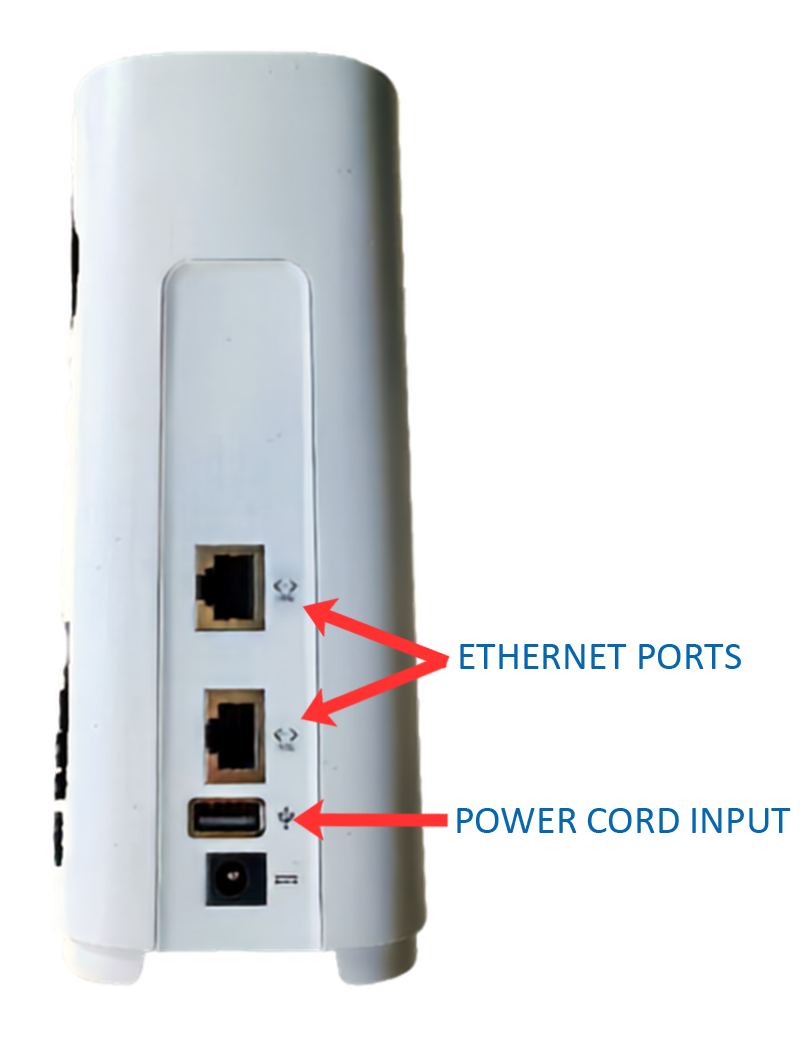 Step 3: Place the new HTC Smart Wi-Fi device in the same location, then connect the power cord and existing ethernet cable into the back. Either ethernet port can be used.
Step 4: Plug the power cord into the same outlet used by the previous device, or the nearest available outlet.
Step 5: Allow device to complete setup, which typically takes 20 minutes. The device may restart, and its indicator lights will change during this time. When the indicator light turns off, setup is complete.
Solid Green: Device is powering up.
Flashing Blue: Searching for network.
Off: Connected to HTC Internet.
Your new HTC Smart Wi-Fi device will replace any of these previous devices.
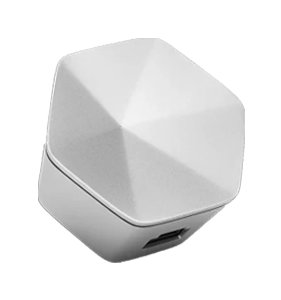
Plume
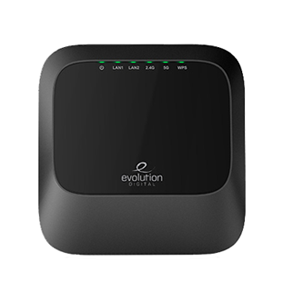
EVO
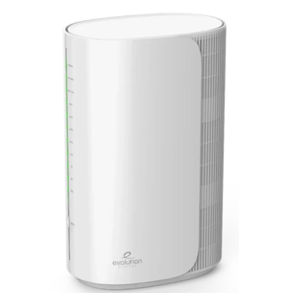
EVO 8000
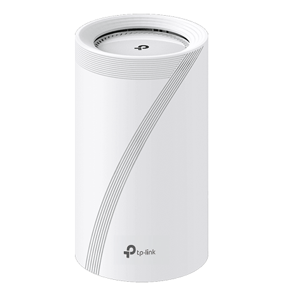
TP Link PB70
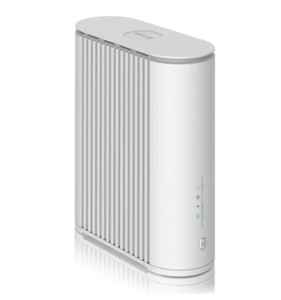
Zyxel 6510
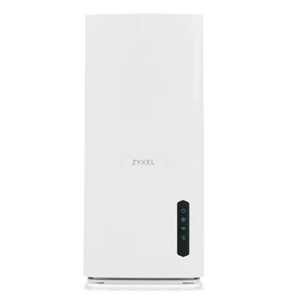
Zyxel 7710