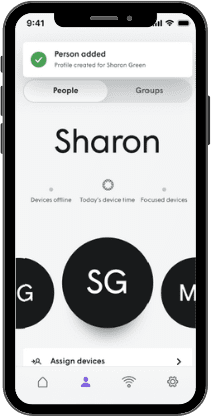
Creating User Profiles
Adding people allows you to conveniently monitor and manage their Wi-Fi access.
ADDING A PERSON
- Tap the “Profiles” icon at the bottom of the home dashboard.
- Tap the “+” button at the top-right corner of the Profiles screen.
- Tap on the placeholder image and follow the instructions to add a Profile image.
- Select your preference for content filtering (restricted, moderate, light, or none).
- If inviting a user, tap “Invite to Plume Home app” and set permissions (read-only or full access).
- Finish setup by tapping “Add” or “Add & invite”