
How to use MultiView on your Amazon Device
The MultiView feature allows four (4) simultaneous channels to be displayed on one screen.
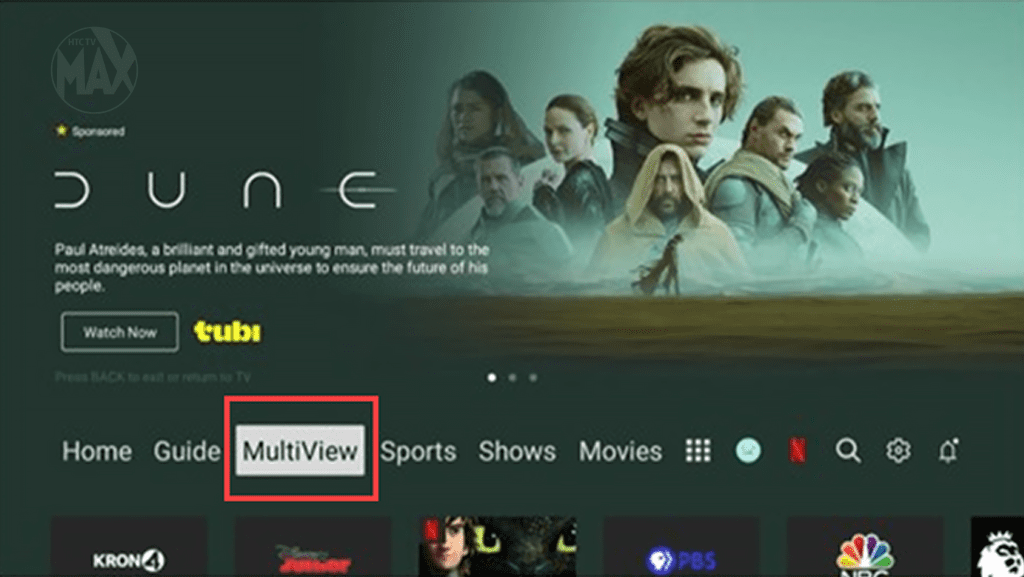
On the main page, select the MultiView option:
At first selection of the MultiView button, a hint page is displayed with explanation of what is to be experienced. This is a one-time hint and will not show again unless you clear data, sign out of the app and back in, or the app is a fresh install.
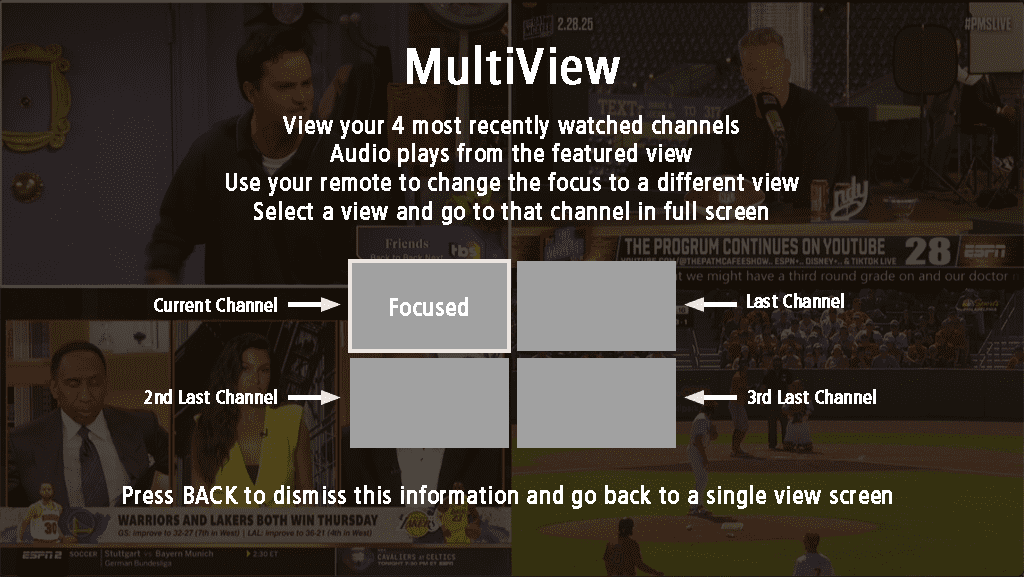
MultiView will display the four (4) most recently watched live television channels on one screen for the user’s profile.
- A unique MultiView experience of most recently watched live channels will be displayed per each user profile.
- Audio for the channel in Focus View (white bordered) will be playing.
- Navigate between the displayed channels to change audio being heard.
- Select the Focus View channel to expand to full screen view of that channel.
MultiView Features & How-To:
Default Focus View is on the current playing channel or the most recently watched live channel.
The MultiView screen displays the four (4) most recently watched live channels in a grid layout. Each channel is shown in a quadrant (tile) labeled as follows:
- Top-Left: Either the currently playing channel or the most recently watched one.
- Top-Right: The second most recently watched channel.
- Bottom-Left: The third most recently watched channel.
- Bottom-Right: The fourth (oldest) recently watched channel.
This order matches the sequence shown in the Recently Watched channel tiles.
When first opening MultiView, the Top-Left quadrant is highlighted with a white border, and its audio plays. Each tile shows the channel’s logo, number, and current program title.
To navigate, use the remote’s arrow keys. Moving Focus to another tile will:
- Highlight the new tile with a white border.
- Switch audio to that channel.
- Display its program title prominently.
Auto Fade Program Title
On most devices, the channel logo, number, and program title will automatically fade after 3 seconds when you first open MultiView or move between sections. To show them again:
- Move focus to another section.
- Return to the original section — the info will reappear.
(On Apple TV, this info stays visible permanently and does not fade.)
Exiting MultiView
There are two ways to exit the MultiView screen.
- Select a channel to watch in full-screen:
- Highlight a section (tile) and press OK/Select on your remote. This switches you to that channel in full-screen mode.
- Return to the home screen or video:
- Press the Back button to go back to the home screen (Main Navigation). From there, pressing Back again closes the home screen and returns you to your last watched video (e.g., live TV, recordings, or on-demand content).
MultiView Audio
Supported Audio:
- Only Stereo Audio is available in MultiView mode.
- Dolby Digital is not supported in this view.
Volume Note:
- If your default audio for full-screen video is set to Dolby Digital (and you don’t adjust the volume), MultiView may sound louder than full-screen playback.
- Fix: Switch your audio to Stereo in the Audio Settings when in full-screen video playback to balance volume levels.
- This ensures consistent audio quality and volume across both MultiView and full-screen modes.
Closed Captioning for MultiView Display
The MultiView screen inherits the closed caption setting when set or unset during any full-screen video playout. If Closed Captioning is disabled in full screen video playout, no Closed Captions will be displayed on entry into MultiView.
- To enable Closed Captioning in MultiView, users must return to full-screen video playout and enable Subtitles in the Media Controls overlay.
- To disable Closed Captioning in MultiView, users must follow the same steps except that users disable Subtitles in the Media Controls overlay
Key Notes
- MultiView will only display live channels. It will not display other content types (i.e. Replay, Start Over, Recordings).
- If Parental Control is enabled and any of the most recently watched channels are rated Mature+, you will see a black screen for that channel.
- If Closed Captioning is enabled or Secondary Audio sources are selected, that will be presented in the MultiView experience.
- Four (4) simultaneous channels playing do not debit stream counts available. This is still considered one (1) stream when using MultiView.
- Mobile devices will not have MultiView experience.
- MultiView is not available on all Fire Devices. If your device isn’t displaying the MultiView option, please contact Technical Support at 843.365.2186 for guidance on supported devices.
