
How to Clear Cache from EVO Force 1 Box
If you’re experiencing intermittent issues with the HTC TV Max app on your Force 1 device, clearing the app cache can help. This process can improve app performance and keep your Force 1 device running smoothly overall.
Follow the steps below to clear the cache for smoother streaming:
Step 1: Press the silver TiVo button on your Force 1 remote to open the Menu Bar.
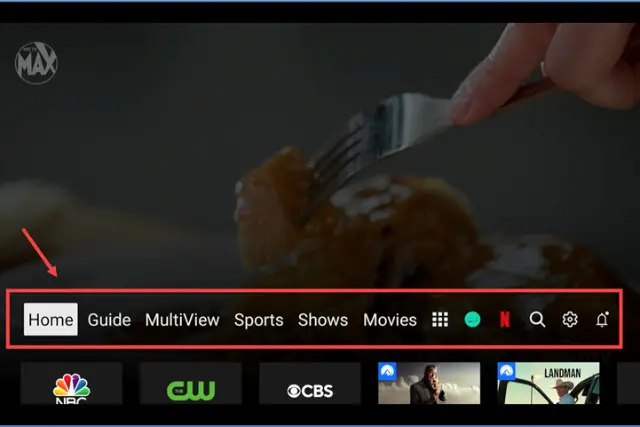
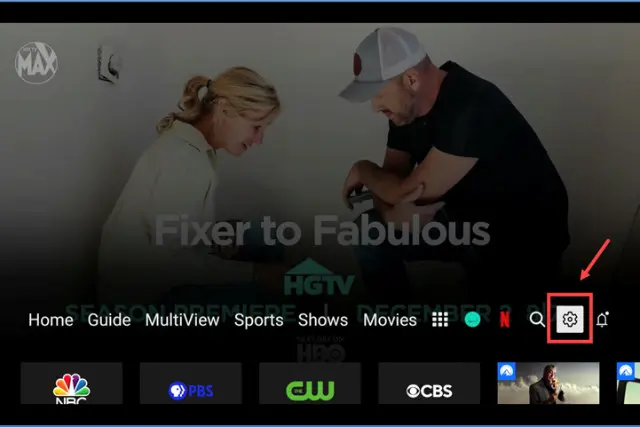
Step 2: Navigate to the far right of the Menu Bar and select the Gear Icon to open Settings.
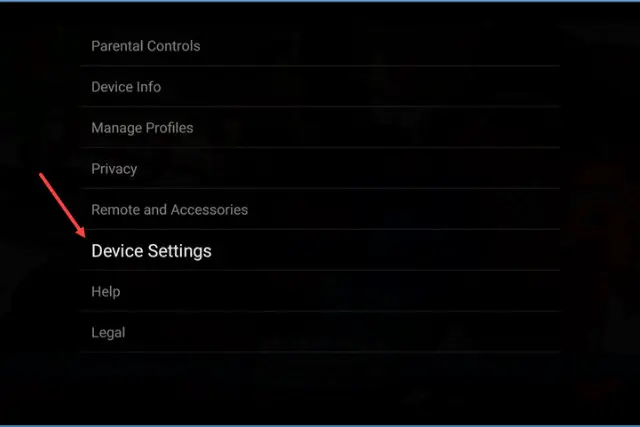
Step 3: In Settings, scroll down and select Device Settings.
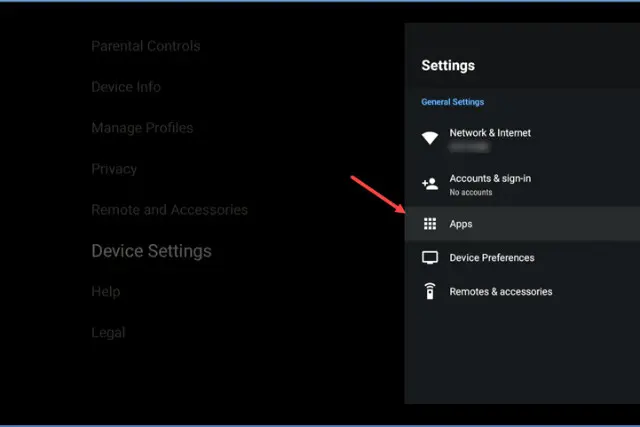
Step 4: Under Device Settings, scroll down and click on Apps. Here you can also select “See all apps” to view all installed applications.
Step 5: The HTC TV Max app appears first by default and is labeled as “TV.” Select “TV” to continue.
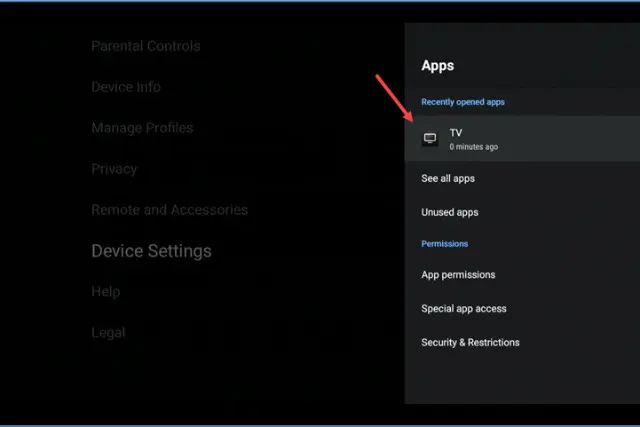
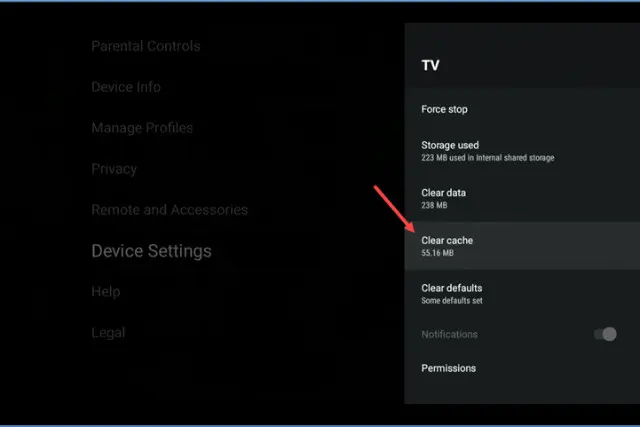
Step 6: Inside the TV app menu, select Clear Cache, then confirm by selecting OK.
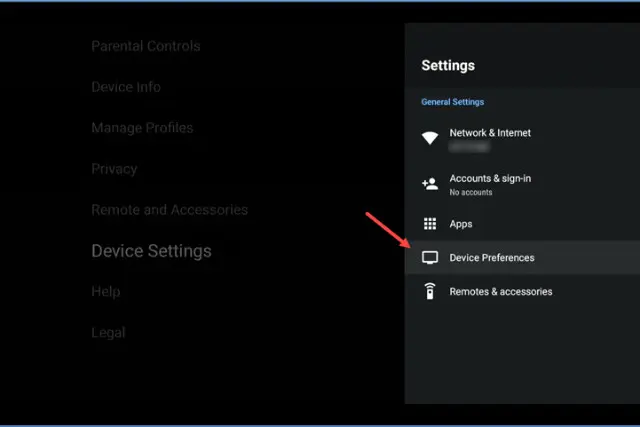
Step 7: Once finished, press the Back button twice to return to the main Settings screen. Scroll down and select Device Preferences.
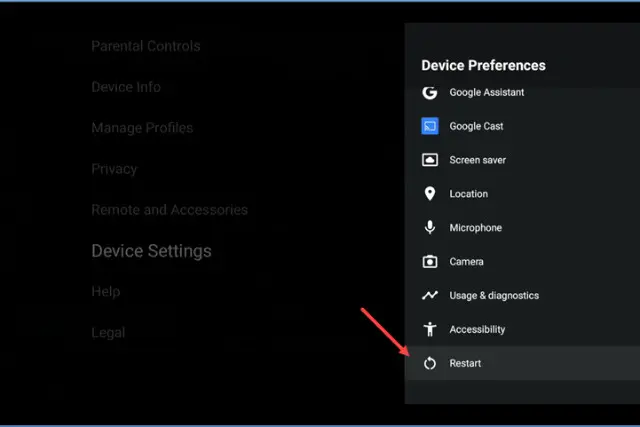
Step 8: In Device Preferences, scroll all the way down to Restart, and follow the prompts to restart your Force 1 device. The device will power off and then automatically return to your show once it restarts.
You’re All Set!
The HTC TV Max app cache is now cleared. For best performance, we recommend checking and clearing the cache about once a month.
